Build a One-Cable Laptop Desk Without Buying the Wrong Dock
Our buying advice is based on published specifications and documented features. The shop links below go to official stores and currently contain no affiliate tracking. Read our disclosure.
Gear to consider
Start with your use case. Check the store for the current price, compatibility, and availability.
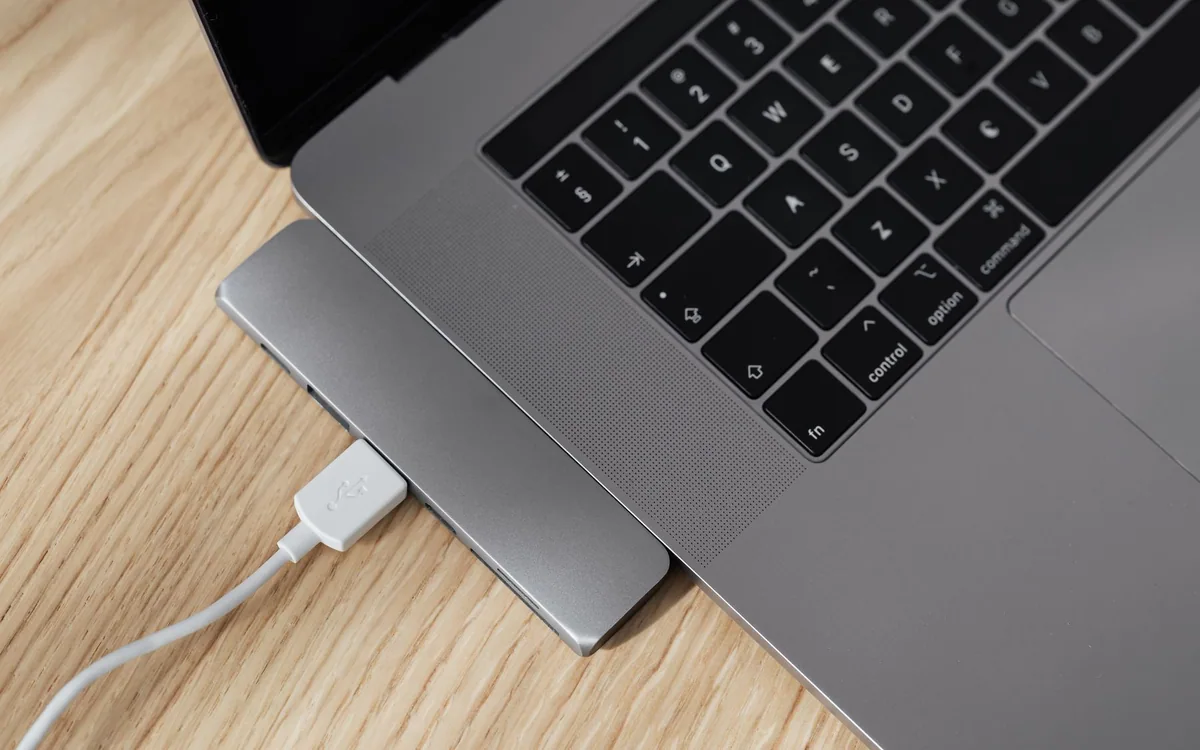
You arrive home, put the laptop on its stand, and connect power, a display, a webcam, a drive, and a keyboard receiver. One loose connector sends you behind the desk again. The attraction of a one-cable setup is practical: leave the desk assembled and make arriving or leaving less fiddly.
The catch is that a USB-C socket does not guarantee every necessary feature. This guide uses published device specifications and a connection-planning workflow. This guide does not report hands-on dock testing; verify your exact host before committing to the hardware.
| Desk pattern | Consider | Key check |
|---|---|---|
| One new screen and a few accessories | Hub monitor | Host video and delivered power |
| Existing monitor and many peripherals | Powered dock | Host-specific display support |
| Occasional travel expansion | Compact hub | Power and refresh-rate limits |
Inventory the laptop before shopping
Find the laptop’s exact model and its manufacturer’s port documentation. Record whether the relevant connection supports video output, data, and charging, along with the supported display count. A dock cannot remove the computer’s native display limits. Also check whether company policies restrict drivers or require an approved accessory; this matters for a work laptop you do not administer.
Next, list what stays on the desk. Include the monitor’s resolution and refresh rate, keyboard and mouse connections, webcam, storage drive, speakers, and network cable. Mark anything you can leave connected wirelessly or connect only occasionally. This short inventory prevents buying an expensive dock for ports that will sit empty.
Decide between a hub monitor and a separate dock
A monitor with suitable USB-C or Thunderbolt upstream support can combine the picture, peripheral connections, and laptop charging. This is attractive when you need one screen and a modest accessory collection. Dell’s U2724DE, for example, publishes a Thunderbolt upstream connection with up to 90W power delivery. Confirm the selected monitor’s actual upstream capabilities rather than assuming every USB-C port has the same role.
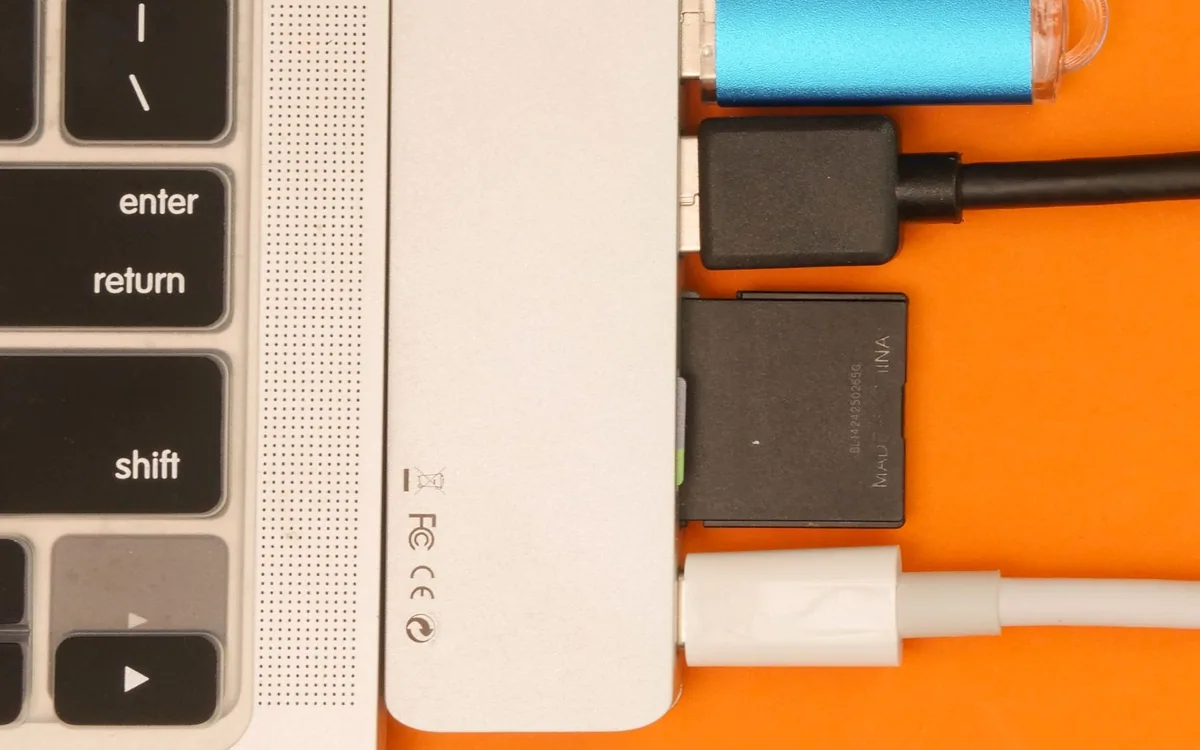
A separate powered dock is more flexible when you already own a good display or need many accessible ports. CalDigit’s TS4 lists 18 ports and up to 98W host charging. Those facts establish its role as a substantial desk accessory, but they do not establish that every computer can drive every advertised display arrangement. Read the computer-specific compatibility information.
Keep the power budget realistic
Compare the dock or monitor’s delivered laptop power with the computer manufacturer’s requirements. A notebook that uses a high-power original adapter under demanding work may still need that adapter. A one-cable arrangement that slowly drains the battery through the day is not meeting your use case, even if it appears tidy in a photograph.
Distinguish the power available to the host from power supplied to downstream accessories. A dock’s large power-supply label does not describe what reaches the laptop. Account for drives, phone charging, and other connected equipment as documented by the manufacturer. If the simple solution needs two cables for your workload, prioritize dependable operation over the visual ideal.
Make the cable and display plan explicit
Use the supplied or specifically recommended host cable as the starting point. A spare charging cable may power the laptop without carrying the required data or picture. Label the host connection and keep a separate routine charging cable in the travel bag so the desk cable is less likely to disappear before the next working day.
For multiple screens, check the supported operating-system arrangement, resolutions, and refresh rates. Two matching physical outputs do not guarantee two independent desktops on every host. If a setup requires software, confirm that you are comfortable installing and maintaining it. Buy for the actual display arrangement rather than a product page’s largest possible monitor count.
Arrange for departure as well as arrival
Put frequently accessed ports where they are easy to reach, with enough slack to insert a drive without pulling the dock. Keep power bricks ventilated and route the host cable so it does not stretch across a standing desk’s travel. Secure cables gently; tight bends and tension near connectors can create avoidable trouble.
During the return window, check waking from sleep, a normal video call, a large file copy, and the intended display mode. Eject external storage appropriately before unplugging the laptop. If you alternate work and personal computers, try both. A successful desk is one that reconnects consistently during an ordinary week, not merely one that displays a picture once after installation.
Common questions
Does Thunderbolt guarantee two external screens?
No. The computer’s hardware, operating system, and the particular connection arrangement still determine display support. Check the host manufacturer and dock compatibility documentation for your exact model.
Is a more expensive dock automatically more reliable?
Price does not establish compatibility. Choose a documented match for the host and peripherals, use an appropriate cable, and test the full routine while returns remain available.
Sources & editorial notes
Manufacturer and support documentation checked for this guide. Features, regional availability, and prices can change. Our recommendations apply those documented features to everyday scenarios; they do not represent hands-on testing.
- CalDigit: TS4 specifications and compatibility · Checked 2026-10-19
- Dell: U2724DE connections and power · Checked 2026-10-19
Found an error? Tell the editorial desk with the article link and a supporting source.