Choose a Mouse for Long Workdays by Fit, Reach, and Routine
Our buying advice is based on published specifications and documented features. The shop links below go to official stores and currently contain no affiliate tracking. Read our disclosure.
Gear to consider
Start with your use case. Check the store for the current price, compatibility, and availability.

After several hours of documents and browser tabs, the mouse has travelled only a small patch of desk but your hand has repeated the same movement thousands of times. A premium model may promise more buttons and a sharper sensor, yet neither feature guarantees that its shape suits you.
A useful buying process looks at hand preference, desk geometry, application habits, and connection constraints together. This guide offers practical selection advice based on published product information. It does not diagnose discomfort or claim that any particular mouse prevents or treats an injury.
| Routine | Useful priority | Potential mismatch |
|---|---|---|
| Wide documents | Convenient horizontal navigation | Controls you never assign |
| Shared workspace | Click sound and desk surface | Assuming quiet means silent |
| Frequent travel | Manageable size and connection | Large permanent-desk shape |
Fix the reach before replacing the mouse
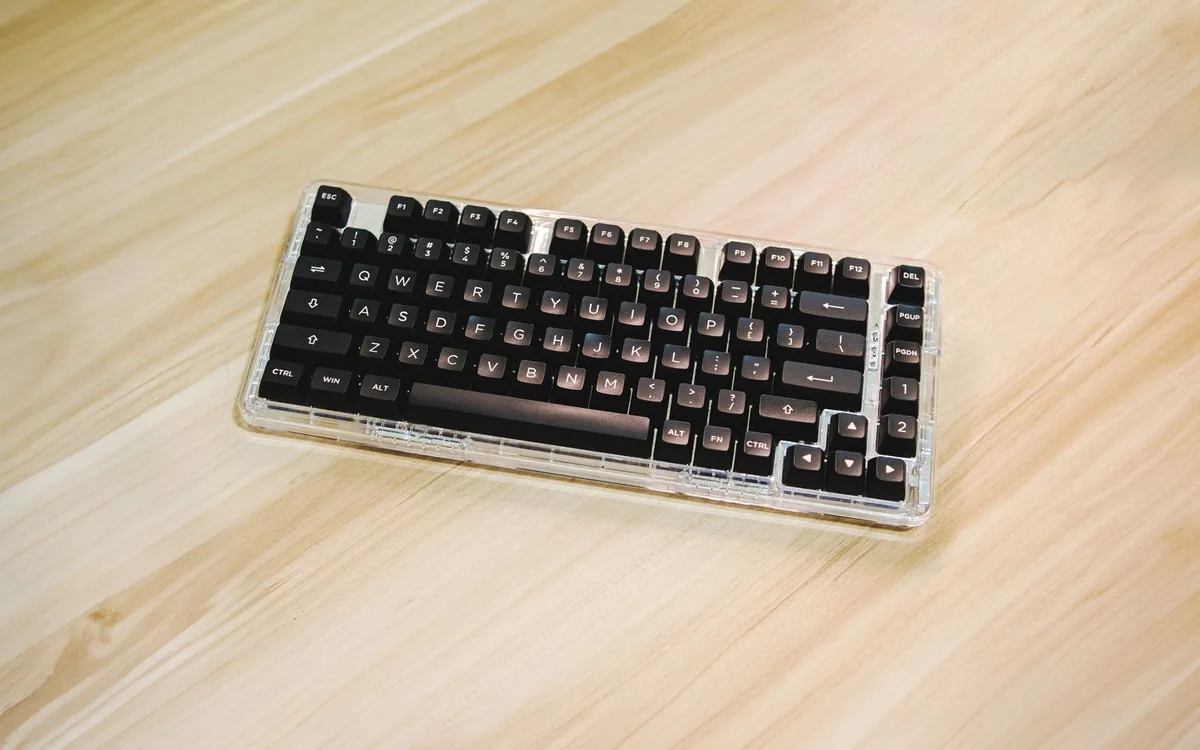
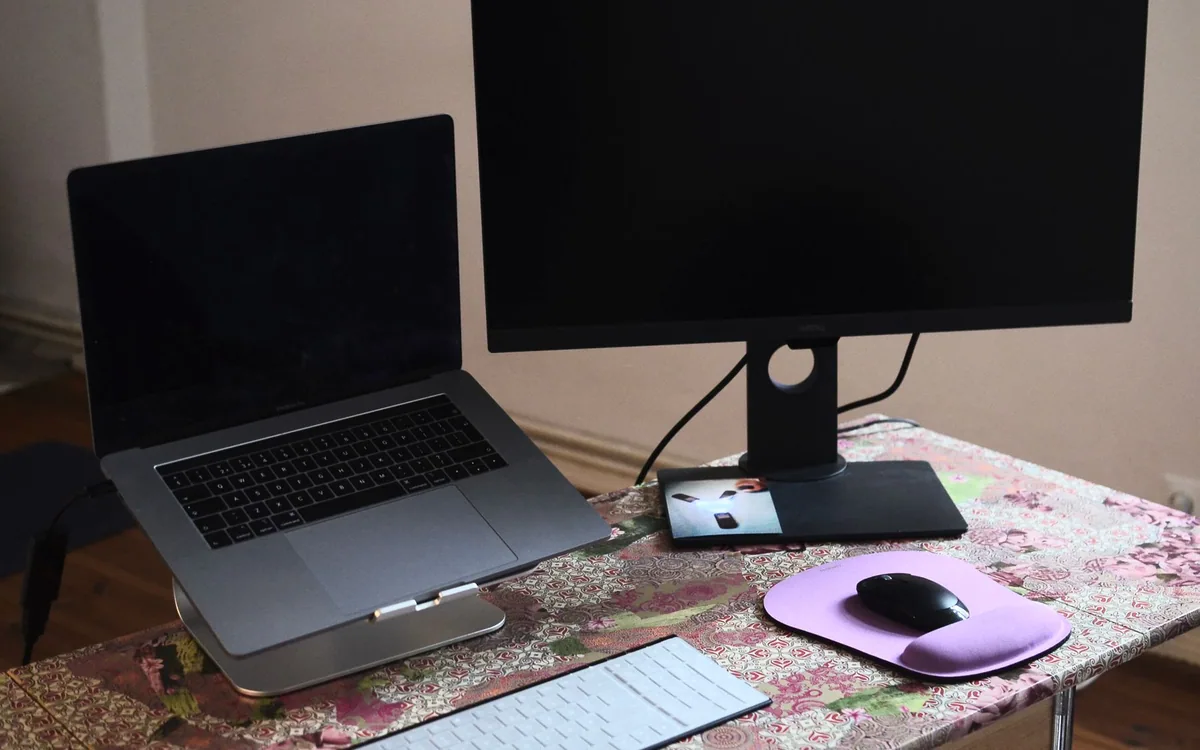
Look at where the mouse sits relative to your usual typing position. A wide keyboard with a number pad can push it farther to the side. Move unused items out of the way and bring the mouse closer before assuming its shape is the only problem. A smaller keyboard may change the setup more than a more expensive mouse.
Check the surface and available movement area. A cable dragging against a monitor stand can feel inconvenient even when the mouse itself is fine. For wireless use, keep the receiver or connection arrangement appropriate to the computer. A clear patch of desk and sensible cable routing are low-cost improvements worth trying before placing an order.
Match shape to your hand and preferred side
Consider how you naturally hold a mouse: fingers extended, hand resting on the shell, or a lighter fingertip grip. Dimensions help narrow options, but a photograph cannot tell you how side buttons sit under your thumb. A return policy is valuable because fit often becomes clear only after a normal work session.
Logitech’s MX Master 3S is a right-handed design to investigate for a permanent desk. Its sculpted shape and extra controls may appeal to document-heavy users, but a large or shaped mouse is not universally comfortable. Left-handed users and people who switch hands should evaluate an appropriate alternative rather than accepting a poor fit for the feature list.
Choose controls around recurring tasks
A horizontal thumb wheel can be useful when moving through wide spreadsheets or timelines. Extra buttons may reduce repetitive navigation between pages or applications. Write down two or three actions you would actually assign before paying for customization. If the list remains empty, a simpler mouse may serve the day perfectly well.
The MX Master 3S publishes a thumb wheel, Quiet Clicks, and an 8,000 DPI optical sensor. These are product features rather than evidence that the device will make every task faster. Pointer sensitivity should match your screen arrangement and control preference. The highest available setting is not automatically the setting you should use.
Check software, pairing, and charging expectations
Some advanced assignments require companion software. On a work computer, confirm whether it can be installed and whether security policies allow the intended functions. Check which operating systems support the features you want, not merely whether the mouse can pair. Basic pointer movement and full customization can have different compatibility requirements.
Think about where the mouse will be charged and whether the supplied accessories suit your ports. A desk-only mouse can tolerate a different charging routine from a travel mouse that spends days in a bag. If multiple computers share it, rehearse switching between them and verify that the chosen connection method does not create another adapter to lose.
Use an ordinary workday as the fit check
During the return window, try a representative mix of typing, spreadsheet work, browsing, and calls. Notice whether you stretch to reach buttons, grip harder than expected, or keep repositioning the mouse. Change sensitivity gradually rather than treating unfamiliarity as proof that more expensive hardware is better. Keep movement breaks part of the day regardless of the mouse selected.
Compare the current price with the benefits you will use. Quiet clicks may matter in a shared room; side controls may matter for spreadsheet work; compact size may matter for travel. If discomfort persists, seek appropriate professional advice rather than repeatedly buying accessories on the assumption that a single ergonomic label supplies a universal solution.
Common questions
Do I need an 8,000 DPI sensor for office work?
The number describes a capability, not a requirement. Choose a pointer speed that gives comfortable control across your screen arrangement. Fit and the tasks you perform are usually more useful starting points than a maximum setting.
Will an ergonomic mouse fix wrist pain?
A product label cannot establish that. Fit, desk arrangement, habits, and individual circumstances all matter. Do not rely on a mouse purchase as treatment, and seek suitable advice for persistent symptoms.
Sources & editorial notes
Manufacturer and support documentation checked for this guide. Features, regional availability, and prices can change. Our recommendations apply those documented features to everyday scenarios; they do not represent hands-on testing.
- Logitech: MX Master 3S features and supported workflow · Checked 2026-10-19
Found an error? Tell the editorial desk with the article link and a supporting source.